The Task
For a while now, I have read that you can install SQL Server 2017 Linux Edition on a Mac. Since macOS is a Unix based OS, this makes it very plausible that everything will work. I have wanted to try it out on my MBP. Now that I have started a blog, this seems to be as good a time as any to give it a go.
Just a side note, I will put down exactly what I did to get this process running. I expect there will be follow-up posts to this as I explore the installation even more. I do recommend that you go out to YouTube and search other sites to gain a well-rounded perspective on what to do.
Hardware and Software Configuration
- MBP 13”, 2017
- 2.3 GHz Intel Core i5
- 16 GB 2133 MHz LPDDR3
- 512GB SSD
- Intel Iris Plus Graphics 640
- macOS High Sierra (currently Version 10.13.6)
It’s not going to have blazing performance, but it is good enough for experimental purposes.
Prep Research
I went and scoured other sites (including YouTube) to see what people are doing. I compared that to what Microsoft lists as instructions and found that there is not much variability (except when it comes to using the GUI interface Kitematic). This seems like a straightforward project to do so I am going in this with confidence.
Installation Overview
The process is actually simple as far is installing database systems go. First, I will install the supporting software, Docker followed by SQL Server 2017 for Linux itself. Finally, I will install a GUI tool for managing/querying the database server. Not to panic if there is an issue. I have backups running via Time Machine and it is doubtful I will need to go to that level (I hope).
Installation of Docker
You will need first need Docker which is a container-based ecosystem that SQL Server 2017 Linux runs within. Fortunately, a community version exists for Mac.
Go to Docker
You will need a Docker account, so create one if you need to do so.
Look for “Docker Community Edition for Mac” from the store (it is free as of time of this writing). Here is the link I used: https://store.docker.com/editions/community/docker-ce-desktop-mac
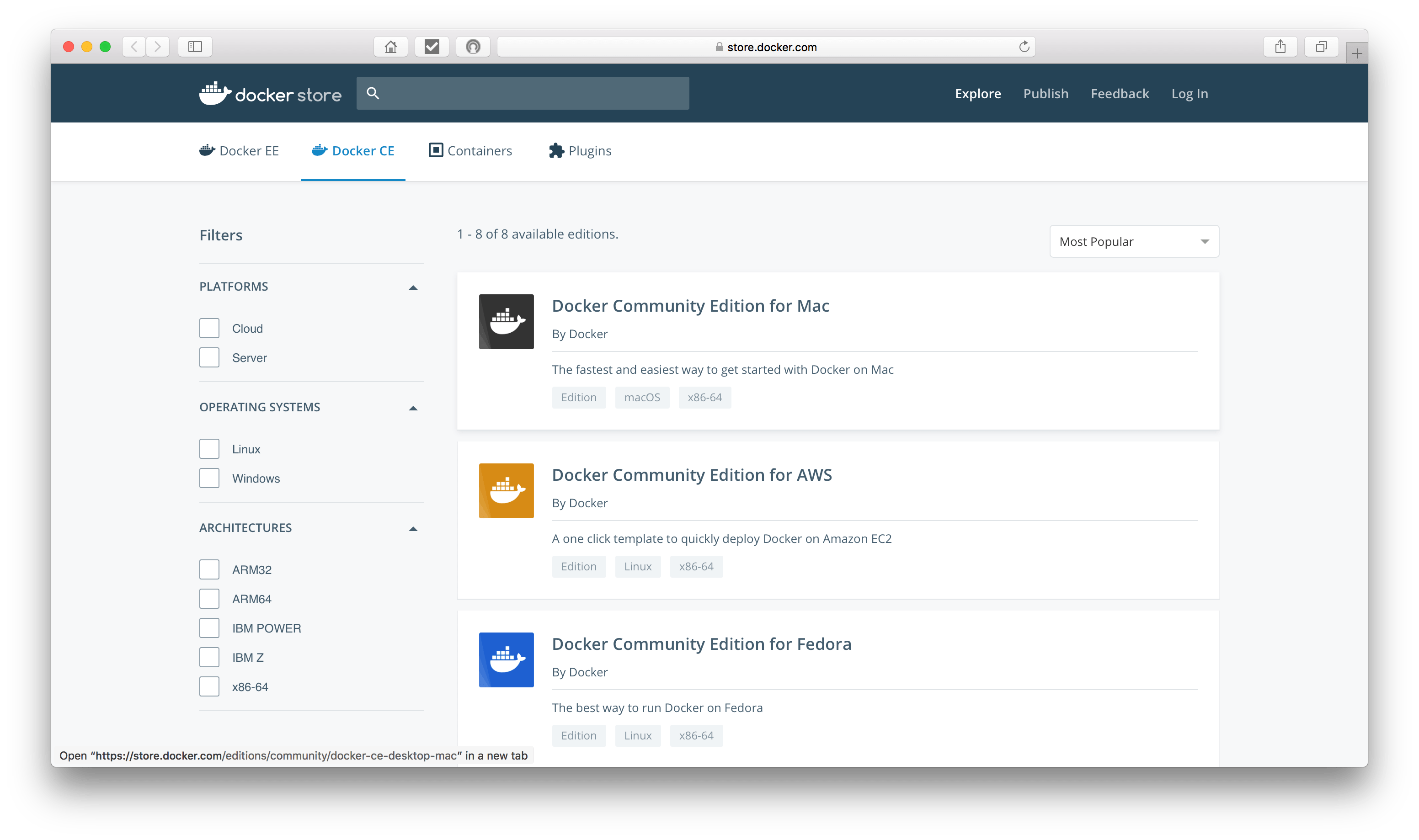
The file size is about 517.4 MB.
Install Docker by dragging the icon to the applications folder.

Start Docker. It will now ask you for your Docker ID (you created that before downloading).

There is one more step at this point. You will need to configure the memory Docker uses. Chose the Docker menu then pick “Preferences.” The preferences window will appear and you need to go to Advanced. The default setting is for 2GB. Change this to 4GB or SQL Server 2017 will not work without that setting change. Choose “Apply & Restart” to continue (it will take a few moments to restart Docker)

At this point, you are done with the installation and start up of Docker.
It is now time to get SQL Server 2017 for Linux into a Docker container.
*Note: you can use Kitematic which is a graphical interface at this point. However, I am going to use the terminal command approach. It is just a personal preference. Some folks like the GUI approach better. More power to them!
SQL Server 2017 Linux download and installation
Follow the Microsoft instructions at this point (https://docs.microsoft.com/en-us/sql/linux/quickstart-install-connect-docker?view=sql-server-linux-2017). It is fairly straightforward. Open up a Terminal Window and type
sudo docker pull microsoft/mssql-server-linux:2017-latest
You should witness the progress of the download and extraction at this point.
2017-latest: Pulling from microsoft/mssql-server-linux
f6fa9a861b90: Pull complete
da7318603015: Pull complete
6a8bd10c9278: Pull complete
d5a40291440f: Pull complete
bbdd8a83c0f1: Pull complete
3a52205d40a6: Pull complete
6192691706e8: Pull complete
1a658a9035fb: Pull complete
69238266c4f2: Pull complete
37c1bf288fdc: Pull complete
Digest: sha256:2772bcb1e90c3caf2bdaf3bfe7d8158a7e4e506e6858c266ec2f918cbf1cf682
Status: Downloaded newer image for microsoft/mssql-server-linux:2017-latest
Now execute the following:
sudo docker run -e ‘ACCEPT_EULA=Y’ -e ‘SA_PASSWORD=MannyATTHeManatee’ -p 1433:1433 –name Sirenia1 -d microsoft/mssql-server-linux:2017-latest
For an explanation of the switches, I recommend reading the Microsoft Site. Basically, what it says is:
- Accept the EULA
- Set the SA password of the server to ‘MannyATTHeManatee’
- Port mapping to 1433 on the container
- Server name is ‘Sirenia1’
- The container image is microsoft/mssql-server-linux:2017-latest.
Now check the status of the run:
sudo docker ps -a
This will then provide a list of containers with their metadata:
CONTAINER ID IMAGE COMMAND CREATED STATUS PORTS NAMES
da6cab517c16 microsoft/mssql-server-linux:2017-latest “/opt/mssql/bin/sqls…” About a minute ago Exited (1) About a minute ago Sirenia1
Oh no! What happened to cause it to be in an “Exited” status? Let’s check the docker log for the container by typing (note the use of the container ID):
docker logs da6cab517c16
Now, let’s look for an error in the log. Ah, we found it:
ERROR: Unable to set system administrator password: Password validation failed. The password does not meet SQL Server password policy requirements because it is not complex enough. The password must be at least 8 characters long and contain characters from three of the following four sets: Uppercase letters, Lowercase letters, Base 10 digits, and Symbols..
OK, I need to put in a better SA password (I should have read Microsoft’s instructions just a bit closer). I am going to remove the container and restart. To remove the container, use the ‘rm’ option:
docker rm da6cab517c16
OK, let’s try the same steps again but use a better password. Run the ps -a command again via Docker and:
CONTAINER ID IMAGE COMMAND CREATED STATUS PORTS NAMES
152be44d1bce microsoft/mssql-server-linux:2017-latest “/opt/mssql/bin/sqls…” 4 seconds ago Up 3 seconds 0.0.0.0:1433->1433/tcp Sirenia1
OK, I am feeling pretty good. Let’s try running sqlcmd (this is the standard SQL Server command line tool) following Microsoft’s instructions.
/opt/mssql-tools/bin/sqlcmd -S localhost -U SA -P ‘<password goes here>’
You should now get a SQL Prompt and can execute a query. In this case, we are just checking the server version:
1> select @@version
2> go
————————————————————————————————————————————————————————————————————————————————————————————————————
Microsoft SQL Server 2017 (RTM-CU9) (KB4341265) – 14.0.3030.27 (X64)
Jun 29 2018 18:02:47
Copyright (C) 2017 Microsoft Corporation
Developer Edition (64-bit) on Linux (Ubuntu 16.04.4 LTS)
(1 rows affected)
We are up and running! Success!
Microsoft SQL Operations Studio
This is a Microsoft GUI based tool for managing SQL Server. It is in preview mode so do not expect perfection. I will look into what this tool does compared to SSMS and get back to you. In the meantime, you will first want to read this page from Microsoft: https://docs.microsoft.com/en-us/sql/sql-operations-studio/what-is?view=sql-server-2017
Look for the download page and locate the options for the Mac.
Follow the instruction for installation of the zip file after download.
When connecting, remember to use “localhost” as the server.

Select “Connect” at this point and..
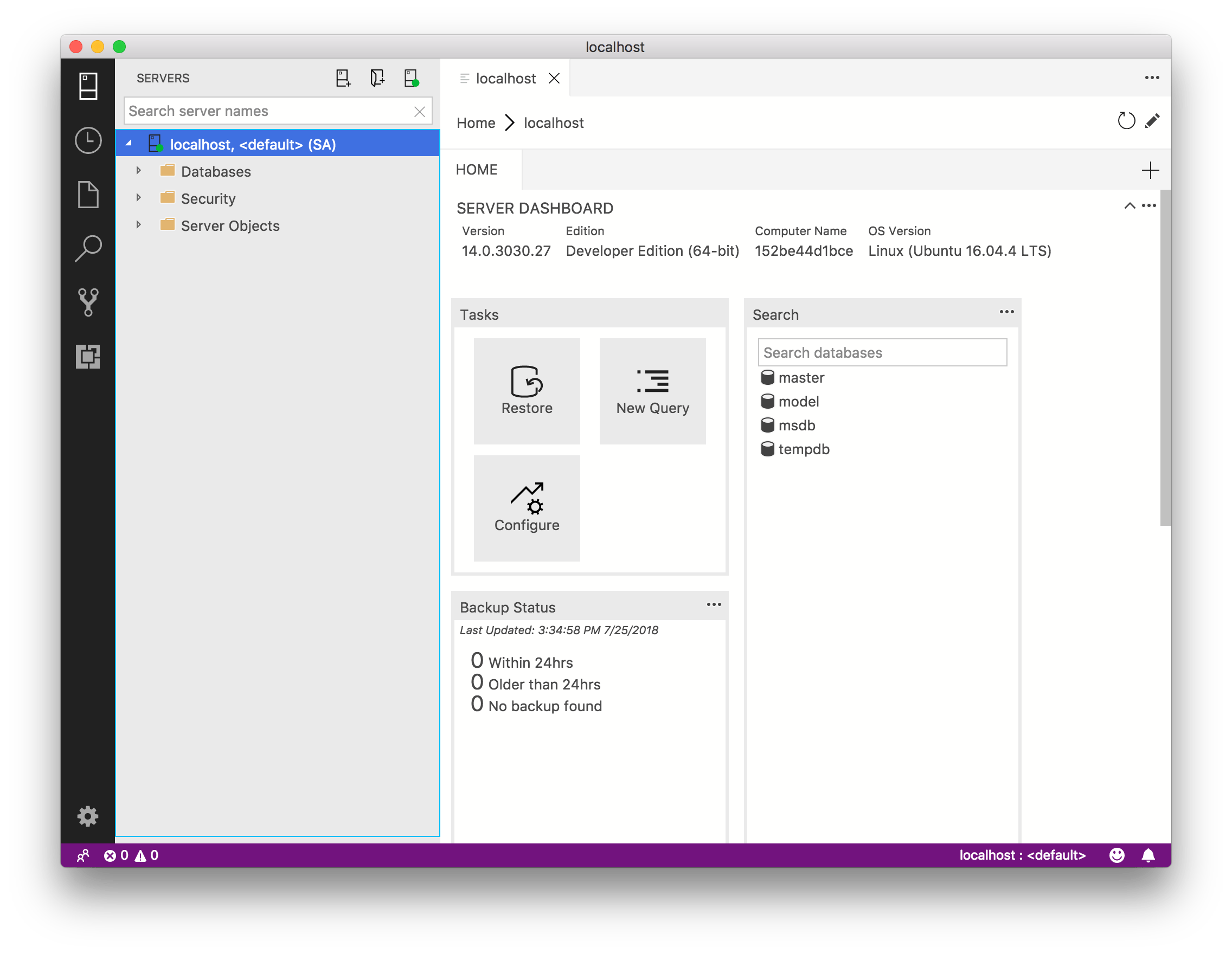
Great! I can see all of the system databases and now can have some fun!
Summary: Success!
Right now, I’m declaring success on this experience! I am very excited to keep having fun with this installation. I understand that there are limitations to what SQL Server 2017 Linux Edition can do at this point (for example SSRS, SSAS, and similar are not supported yet) but this is still an exciting step forward.
Thank you
 Andy’s Neural Works
You must be logged in to post a comment.