For many people in the IT industry, SQL along with an office productivity suite are the main set of tools for analysis. You may get access to a reporting tool, but that could rely on pre or “right”-processed data to be usable. The more advanced analysis tools, such as R and SAS, are often reserved for a select few.
In many cases, SQL is your ally since it is very well suited for many different data processing requirements. Keep in mind that even advanced tools still require some process to feed it data. That can very well come from a RDBMS which relies on SQL.
It can be a bit difficult to create in-depth reporting without a proper tool. Sometimes good workers will do a simple extract with a basic SELECT and push to a spreadsheet for reporting. That is all well and good for small sets of data. Imagine very large sets that will cause even the advanced tools difficulty. You most definitely will want to do processing upfront before pushing to anything. In our case here, that processing will be done with simple SQL. We will categorize what is unorganized into bands or “buckets” of data.
The Problem
Let’s say, you have some weather data and want to analyze windspeed as a whole. You want to categorize it into high vs low speed events. You want to do this by creating a categorization of the set from event counts of low speed to high. The end result is that you want to see a nice histogram to aid in your analysis.
How would you do this in SQL? I will provide you a simple approach and hope you can take and make your own. Let’s first start with importing data.
Importing the Weather Data into SQL Server
I have a file named “weather_summary.csv” that contains various weather points. Even though I will focus on 1 field in the set, I am going load the other fields. Eventually, the other fields come into play for all sorts of analysis.
What I am going to use is Azure Data Studio and its import utility since it works nicely on my MacBook Pro. If you do not have Azure Data Studio and would like to try it, you can find it here:
https://docs.microsoft.com/en-us/sql/azure-data-studio/download?view=sql-server-2017
Once installed, you now will need the SQL Server Import Tool. Go to the Extensions Marketplace which you will find by clicking the square looking icon on the left side bar.
Now search for “Import” and that will bring up the option for the tool.

Press Install and done. Now restart ADS. You may see the install process happening which looks like this:

Once done, it is time to import our file! Select the database you want to import into:

Now do a right click. You will see the following options:

Choose “Import wizard” and follow the steps.
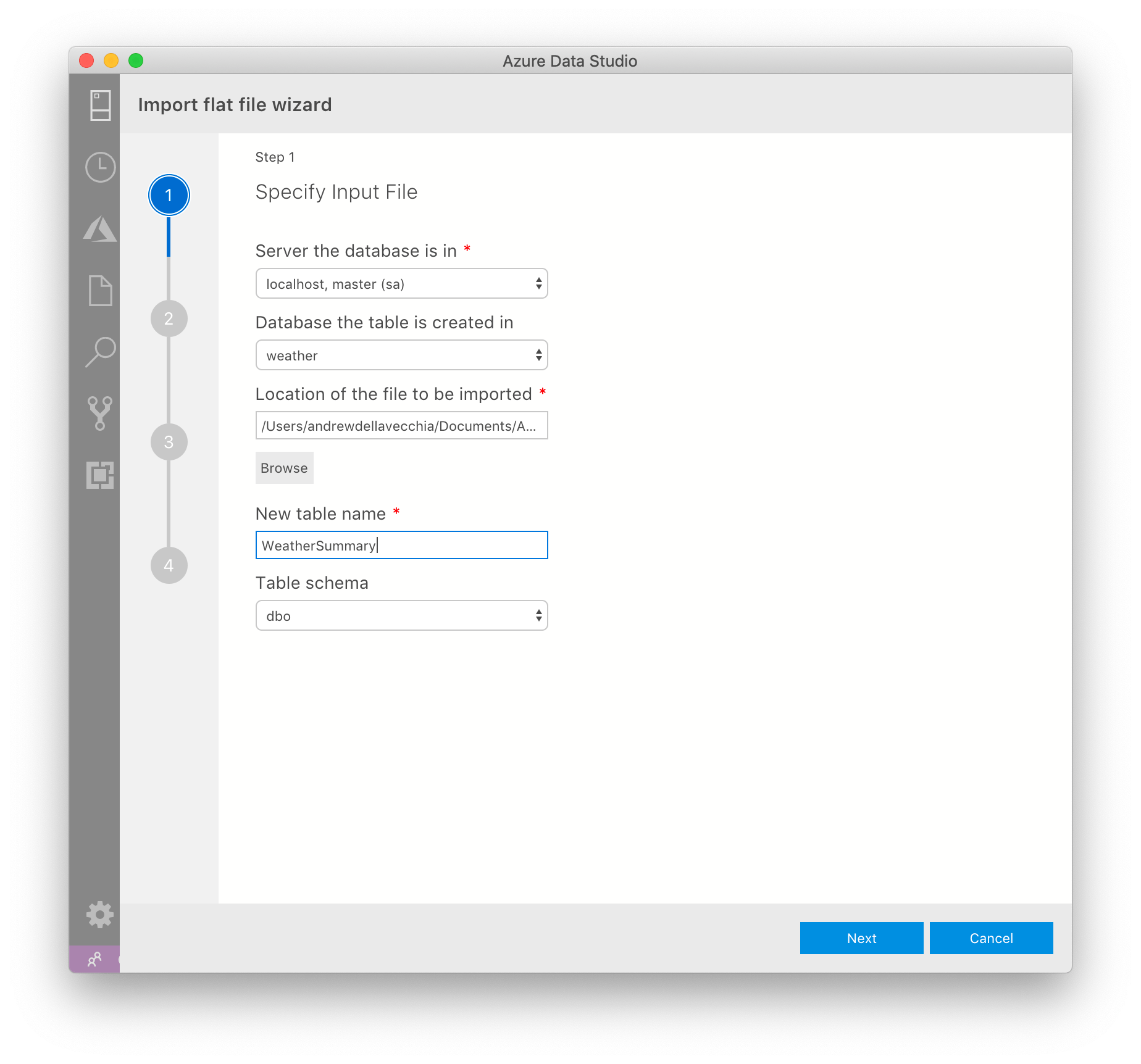
Step 1
Enter table info (we will use WeatherSummary as the table name):
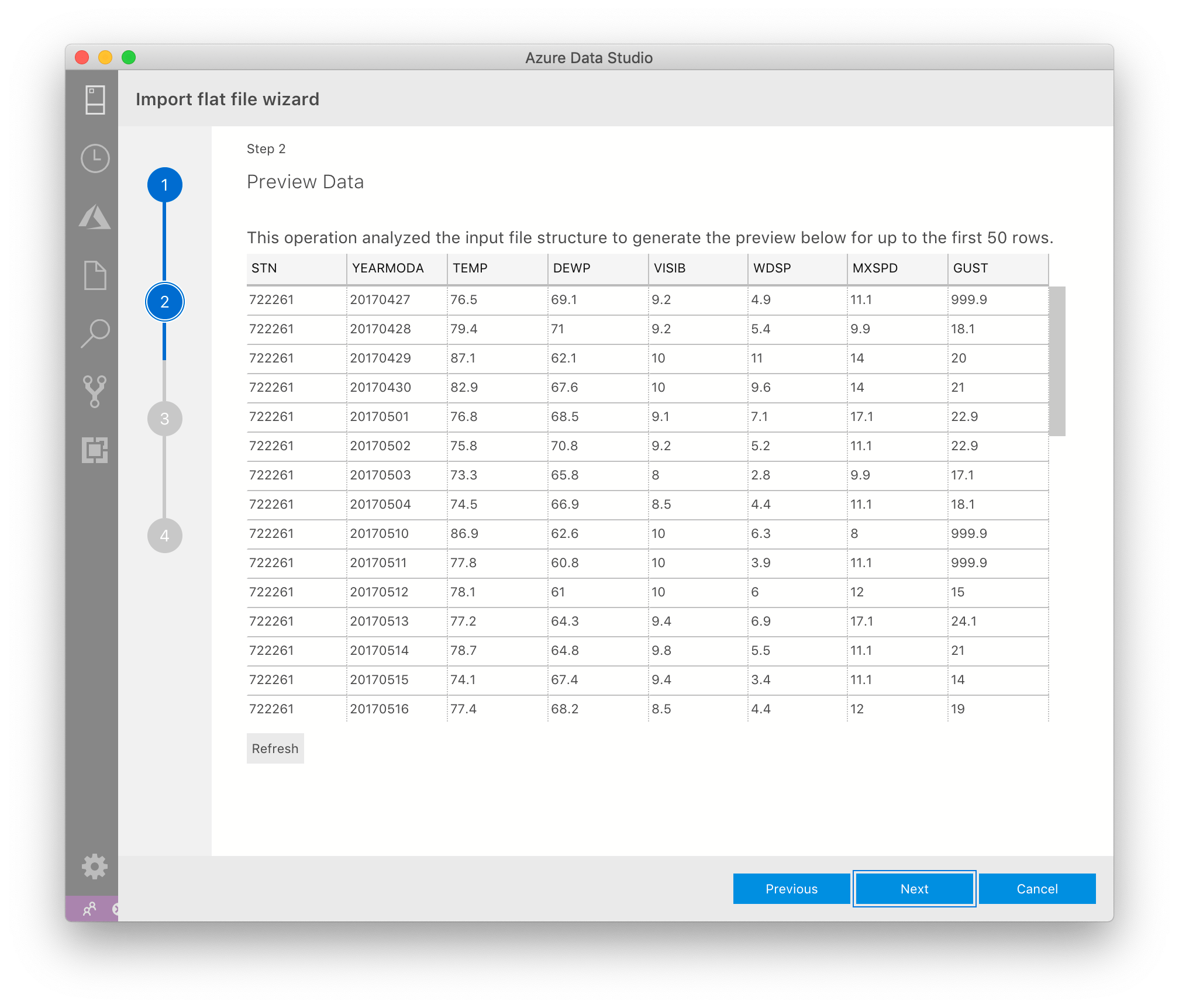
Step 2
Review data for accuracy
Step 3
Review the data type and column names now before continuing.

Click Import Data when it all looks good.
Step 4
Review the summary for completeness.
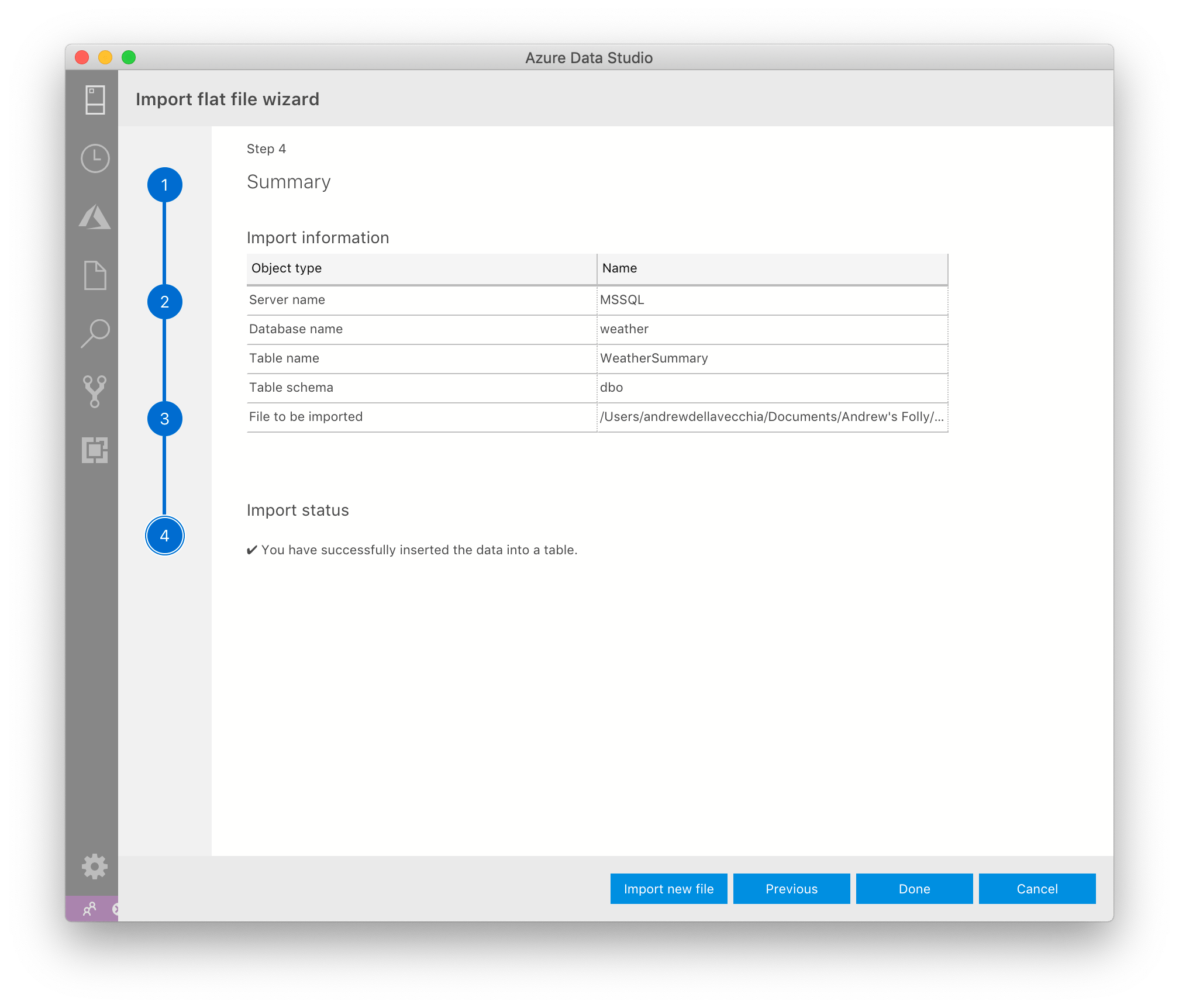
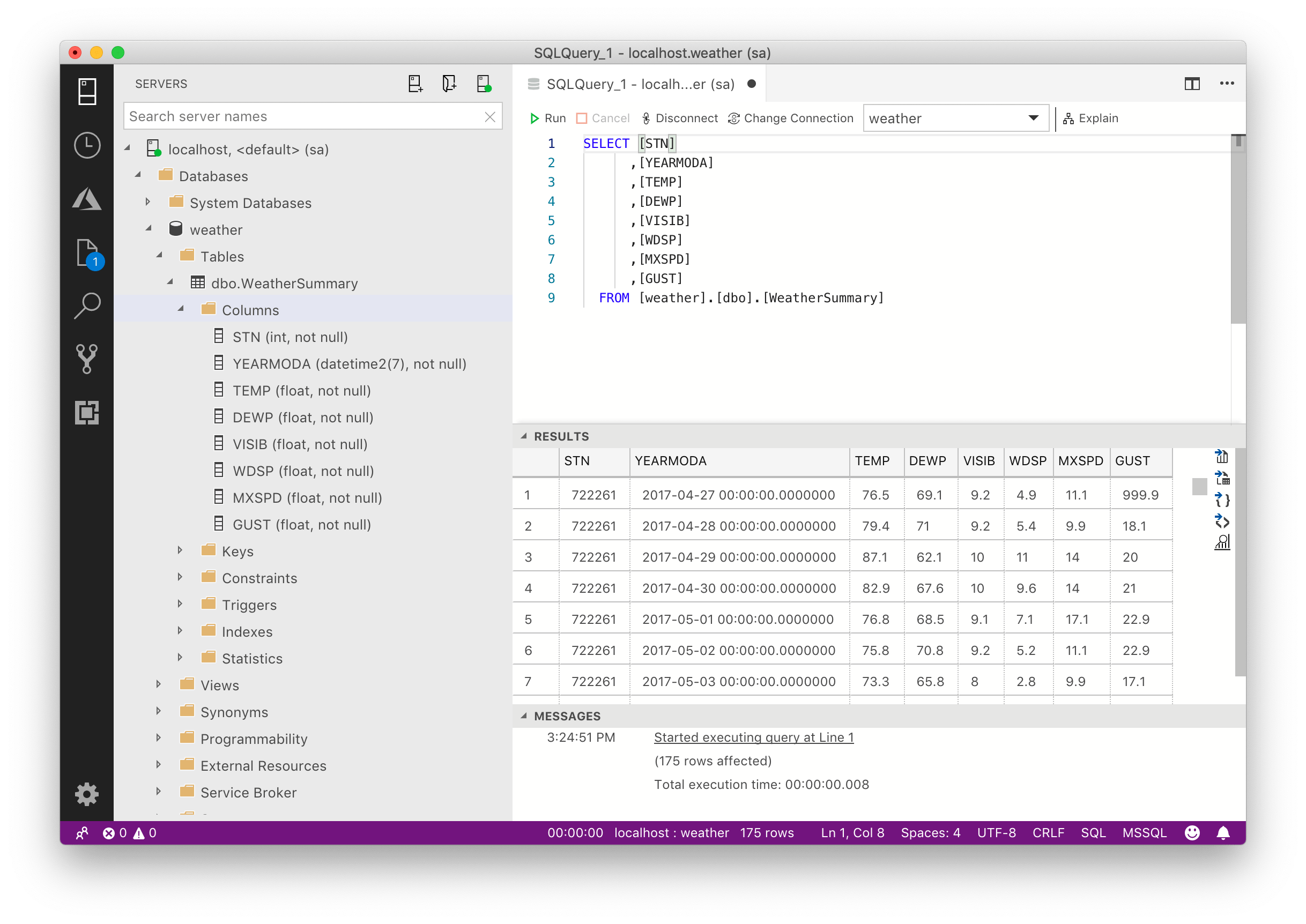
Click done and you are ready to view the results:
Let’s Start Up the Band(ing)
Hopefully, you have a full set of data for play. Let us get to it now.
First, I will show a technique and one alternative to create a single band for the set. This is just to get the basics down.
Find your range
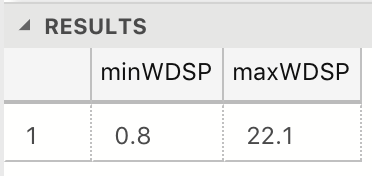
Get the min and max of the entire set to identify where you want to focus. You do this because if you create a band that is too far off, you will not get any counts. So, get a min and max of the windspeed field to understand the general range of values:
SELECTmin([WDSP]) as minWDSP,
max([WDSP]) as maxWDSP
FROM[weather].[dbo].[WeatherSummary]
Single Band
Now, let us create a single band that focuses on a small set. For example, let us go with a windspeed between 0 and 1. Here is the SQL for doing that:
SELECT sum(case whenWDSP >0 and WDSP <=1 then 1 else 0 end) as CountWithinBand
FROM [weather].[dbo].[WeatherSummary]
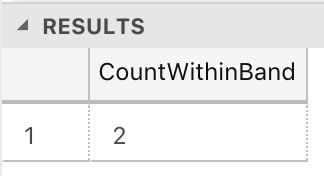
Taking the statement apart, look at the sum(case… section of the select. It is stating that if the windspeed is above 0 and less than or equal to 1 then count that as 1 event in the band. Think about that for a moment. It is going through each record and identifying which points can be counted. If it is not in that band of 0 to 1, then it will not be counted. The sum of all of those values is the final rollup of the 1s and 0s. Bottom line, all this is doing is counting windspeed events between 0 and 1.
For those who are SQL savvy, you might be thinking about this alternative:
SELECT count(*) AS CountWithinBand
FROM [weather].[dbo].[WeatherSummary]
WHERE WDSP >0 AND WDSP <=1
It gets the same results so why the fancy sum(case…? If you are doing just 1 band, go ahead. That works fine. It is when you get into multiple bands that it gets trickier.
Multiple bands
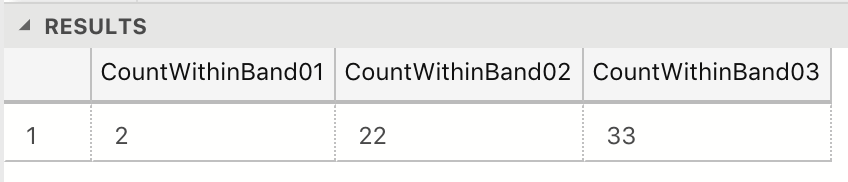
Let us create 3 bands now to see the difference between the two techniques. First, we have the sum(case SQL:
SELECT sum(case when WDSP >0 and WDSP <=1 then 1 else 0 end) as CountWithinBand01,
sum(case when WDSP >1 and WDSP <=2 then 1 else 0 end) as CountWithinBand02,
sum(case when WDSP >2 and WDSP <=3 then 1 else 0 end) as CountWithinBand03
FROM [weather].[dbo].[WeatherSummary]
Now, we have the other point of view:
SELECT ‘Band01’ as BandName, count(*) AS CountWithinBand
FROM [weather].[dbo].[WeatherSummary]
WHERE WDSP >0 AND WDSP <=1
UNION ALL
SELECT ‘Band02’ as BandName, count(*) AS CountWithinBand
FROM [weather].[dbo].[WeatherSummary]
WHERE WDSP >1 AND WDSP <=2
UNION ALL
SELECT ‘Band03’ as BandName, count(*) AS CountWithinBand
FROM [weather].[dbo].[WeatherSummary]
WHERE WDSP >2 AND WDSP <=3
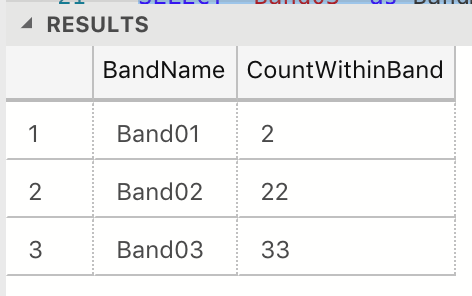
In the first case, we go wide with the results. In the second case, it goes long. Think, what would happen if we grouped by weather stations that are located across various regions? It would look like the following:
SELECT WeatherStationLocation,
sum(case when WDSP >0 and WDSP <=1 then 1 else 0 end) as CountWithinBand01,
…
FROM [weather].[dbo].[WeatherSummary]
GROUP BY WeatherStationLocation
How would the alternative turnout? I’ll leave that puzzle for you. To me, the SQL is getting complicated in that case. It is still valid, but becoming more difficult to maintain. Going wide with the sum(case…) seems better organized. However, you need to decide based on your project’s needs and requirements.
Side note for advanced types: how about a Common Table Expression (CTE) instead of all those duplicate retrievals to WeatherSummary? What would you do?
For argument sake, we are going with the technique of banding using sum(case…). Let us now put this bit of analysis together.
Creating a Histogram
What brought us to this point is to get organized on windspeed events. Going back to our min/max calcs, let us add on a value for a banding range. I would like to see the data cover a total of 10 bands. We take our min and max and do the following:
select minWDSP,
maxWDSP,
(maxWDSP -minWDSP) /10 as rangeWDSP
from(
SELECT min([WDSP]) as minWDSP,
max([WDSP]) as maxWDSP
FROM [weather].[dbo].[WeatherSummary]
) MinMax
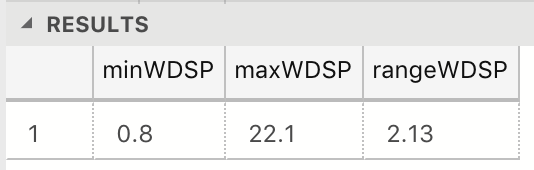
Once again, think about if this set became very large. A simple bit of SQL and you have the basics done.
We can now see we want a band range of about 2.2 (round up). Using that, I am going to build 10 bands using the following SQL:
SELECT sum(case when WDSP <3.0 then 1else 0 end) as Band01
,sum(case when WDSP >=3.0 and WDSP <5.2 then 1 else 0 end) as Band02
,sum(case when WDSP >=5.2 and WDSP <7.4 then 1 else 0 end) as Band03
,sum(case when WDSP >=7.4 and WDSP <9.6 then 1 else 0 end) as Band04
,sum(case when WDSP >=9.6 and WDSP <11.8 then 1 else 0 end) asBand05
,sum(case when WDSP >=11.8 and WDSP <14.0 then 1 else 0 end) asBand06
,sum(case when WDSP >=14.0 and WDSP <16.2 then 1 else 0 end) asBand07
,sum(case when WDSP >=16.2 and WDSP <18.4 then 1 else 0 end) asBand08
,sum(case when WDSP >=18.4 and WDSP <20.6 then 1 else 0 end) asBand09
,sum(case when WDSP >=20.6 and WDSP <=22.8 then 1 else 0 end) asBand10
FROM [weather].[dbo].[WeatherSummary]

That’s a complete aggregation of windspeed events. Since I do not have a reporting tools loaded up, I am going to bring over the results into a simple spreadsheet (I used Numbers as I am trying to learn it) and create a nice graph. Here it is:
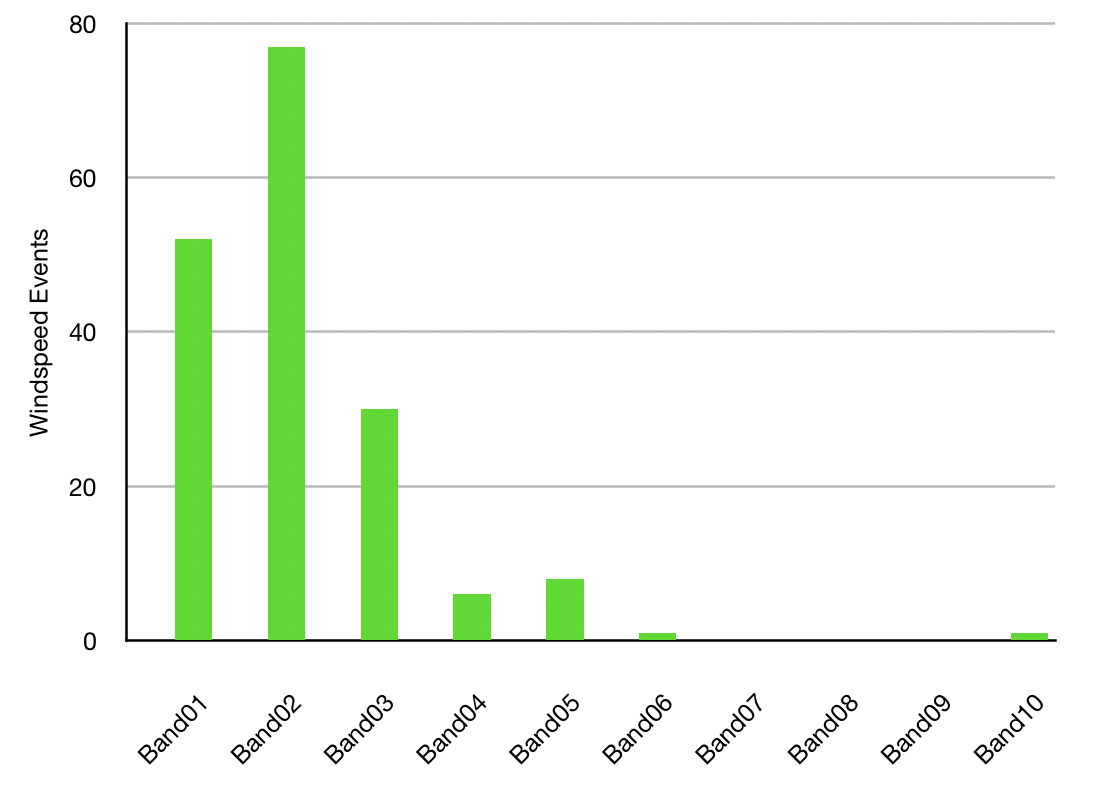
As the analyst in charge, you are now capable of visualizing that windspeed. You now see the events and can move forward with more detailed. Maybe, you will want to “zoom in” on one side or another to get the details. It is up to you but you can adjust the SQL, add filters, groupings, or anything else. It is up to you which way to go.
Conclusion
As in many cases, SQL is a friend of data analysis. In terms of banding, it is quite useful. When dealing with large sets and few tools do not be afraid to give it a go. The technique shown here is simplistic. It is a base for you to build upon. If you are concerned about pushing large sets and server performance, you can limit it with a TOP n approach (or a detailed where clause across a Primary Key) to ease any fears. As always, I hope this helps.
 Andy’s Neural Works
You must be logged in to post a comment.